Monday, January 16, 2012

Updating the mime type property of the doucments in Filenet

When we need to update the properties of the large number of documents  in Content Engine, Filenet provides the script execution option for bulk updates. The scripts are executed using Filenet Enterprise Manager. This option is provided in the search functionality so that we can search the documents based on conditions and update only those articles. This makes developer or support engineer job is easy. Custom property updates generally doesn't require the checkout and checkin of the documents. We can directly update the properties using the script. We can use the below code to update the property.

CEObject.Properties("DocumentType").Value="Confidential"
CEObject.Save

When I tried the above code to update the mime type property it is not working and I found out that it is a read only property and to update the read only properties like mime type we need to checkout the document and before checkin the document we need to update the property. So I have updated the above scrip as mentioned below.

CEObject.Checkout
CEObject.Reservation.Properties("mimetype").Value= "text/html"
CEObject.Reservation.Save
CEObject.Reservation.Checkin

After executing the above script I have observed that the mime type property updated as expected and document version also upgraded but the content of the document is missing. While checkin the document we need to pass the content otherwise it will save the empty document. So I have written a script to get the document content and saved to the local folder and while check-in the document i have added the content. 


CEObject.CopyContent "file:///localfoldername/filename"  
CEObject.Checkout      
CEobject.Reservation.Properties("MimeType")= "text/html"   
CEObject.Reservation.Checkin "foldername\filename"


The above code is used to checkout the content and saved to the local folder and update the mime type property and checkin the content from local folder.


Tuesday, December 13, 2011

Bulk updates in FileNet

Bulk Updates in FileNet using FEM

Bulk updates are used in FileNet when there is a requirement to update a property of a large number of documents with the similar data. Suppose there is a requirement to update Document Type property of a particular document class as the document type values are revisited and updated, in this case, we can use the bulk update to update the document type property of the documents to a specified value.

Bulk update functionality is performed using FEM(FileNet Enterprise Manager) and either VBScript or JScript is used as a scripting language. In the FEM search window using the script tab we can execute this bulk update. In the script, tab check the Execute Script check box to enable the script area

to perform the property update use the below VBScript code

CEObject.properties.item("DocumentType").vlaue = "NewDocuemntType"
CEObject.save

The above code is good at updating the single value properties but to update the multi-value properties we need to modify the code as below


CEObject.properties.item("multivaluePropertyName").value.add("newPropertyValue")
CEObject.properties.item("multivaluePropertyName").value.remove("oldPropertyValue")
CEObject.save


Thursday, January 13, 2011

Important Filenet Tools

There are different tools are available in the FileNet to perform different activities. Below I have listed some of the important tools availablein the FileNet.
  1. FileNet Enterprise Manager 
  2. Process Designer 
  3. Process Task Manager
  4. Process Administrator
  5. Process Configuration Console 
  6. Process Tracker  
FileNet Enterprise Manager is the configuration and administration tool for Content Engine. FileNet Enterprise Manager is a Microsoft Windows application built using the .NET API and communicates with the Content Engine using the Web services interface.

FileNet Enterprise Manager supports the following actions:
  • Configuring all aspects of the domain and underlying object stores.
  • Defining custom metadata, such as classes, properties, templates, subscriptions, and event actions.
  • Assigning many aspects of security access rights.
  • Searching for and administering instances of documents, folders, and custom objects.
  • Exporting and Importing the metadata from one environment to another environment.
The Process Designer is a graphical tool provides the general process design capabilities where users  define or update their process flows. A workflow definition describes all

The Process Administrator tool lets an administrative user query the system for process instances and view the current state of those instances. Process Administrator provides a wide variety of options so we can search very precisely. Process Administrator supports following actions on the work in progress workflow items
  • Complete a step and send it on to the next step.
  • Modify workflow field values.
  • Assign users to or remove users from a workflow group.
  • Delete an entire workflow or one or more work items.
The Process Tracker tool can be launched to view the current and historical state of an individual process instance. Process Tracker provides the status of a workflow that is currently running in a graphical view. From the Process Tracker graphic view window, we can tell what steps have been completed in the workflow, when they were completed, and which steps are currently active.
 
The Process Configuration Console tool defines the rosters, queues, event logs, and various other system-related components. This is used to register the components. From the tool, you import service definitions for the component. You must create a component queue for each imported class and make the component queue operations available to use during a workflow design.

The Process Task Manager tool that is deployed with the Application Engine that can be used to start and stop the various server components, including the server itself. This is used to start, stop, and administer Component Managers. The component must be registered with a omponent Manager. Each Component Manager coordinates one or more components which are responsible for delivering events from the Process Engine to an external entity such as a Web service or a messaging system.This can be verified under the Required Libraries tab for the Component Manager.

Thursday, December 23, 2010

Introduction to FileNet Capture ADR Definer - Fixed Form

Definer features an interface that allows configuration changes to be made quickly and includes an embedded Recognition engine that allows the effect of changes on the recognition process to be tested immediately.

There are two different types of processes available to configure the form definition.
1. Fixed Form
2. Free Form

Fixed Form is used to configure the structured documents while the Free Form is used to configure the unstructured or semi-structured documents. 

Below I have explained about the Fixed Form configuration. In the Fixed Form we need to define the fields and registration points which are became a reference points for the recognition to extract the data.

There are 2 different configuration files are used in the Definer.
1. Definition File (.idf)
2. Script File (.ifv)

Definition file specifies the location of the fields on each document type and details of expected character types, typefaces, noise removal strategies, etc. Specifies registration points used for document type identification and to correct for document misalignment. Specifies how fields are to be processed in Correction. Script file is used to transform the recognized data prior to output from Recognition.

Important Terminology:

Fields: An item of data that is to be captured is called a field. Fields can be of the following types: single line text, multi-line text, mark sense, mark grid, table or bar code.
Registration point: It is feature on the document used to recognize the document type. The position of all data fields is defined relative to the registration points. Registration point can be a corner mark, blob (for example logos), line and text.
Segmentation: It is the process of separating the text, marks or barcodes to be recognized from the background of the form and separating a field of text into individual characters.

Introduction to FileNet Capture ADR

Filenet Capture ADR (Advance Data Recognition)  is a set of modules that provide additional automatic data recognition and advanced keying (indexing and validation) functionality to Capture. ADR modules can be added in the capture process after the document assembly and the extracted data can be used for indexing process. Depending on the requirement the images are either the scanned copies or the imported images.

Advantages:
1. Indexing process is automated to reduce the cycle time.
2. Documents classification can be automated based on the key word search

There are 6 different modules in the ADR
1. Recognition
2. Document Review
3. Correction
4. Completion
5. Verification
6. Scripted Export

There are 8 different tools are used in the ADR
1. Definer
2. Recognition Trainer
3. Recognition Test Tool
4. Script Editor
5. Template Editor
6. Document Review Project Editor
7. Batch Compare
8. Transformation Studio

We will discuss about these tools in the next session.


Wednesday, October 6, 2010

FileNet Capture Architecture

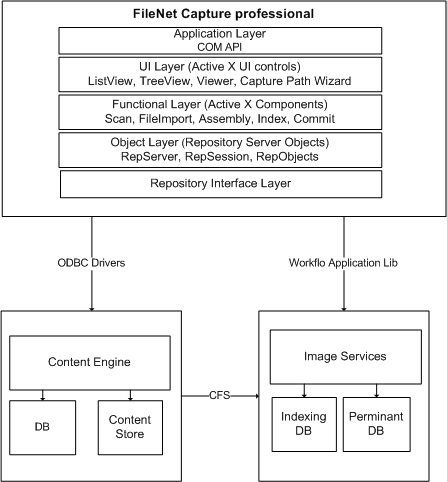
IBM FileNet Capture provides the capability to add documents to the Content Engine object store or Image Manager repository. Capture supports the automating the document entry process which saves lot of time compared to manual entry. Apart from image capturing tools like ADR (Advanced Document Recognition), OCR (Optical Character Recognition) are available to read the data from the captured image. FileNet Capture supports three document capture methods.
1. Scanning
2. Faxing
3. File Import

FileNet Capture supports a wide variety of scanners from low volume personal scanners to high volume production scanners. 
The FaxEntry portion of the Capture product provides an automated method for automatically capturing inbound faxes.
The Capture File Import capability provides a method to import existing documents from user directories. 

There are two different API are available to develop custom applications apart from the out of box capture application.
  1. Capture COM API 
  2. Remote Capture Services .Net API
Capture COM API set provides Capture repository objects and ActiveX controls for image acquisition (for example, scanning and document upload), batching, advanced document recognition (ADR), and others.
 
Remote Capture Services (RCS) provides a .NET framework for developers to build custom .NET Web applications. The RCS toolkit includes Web interface controls, the RCS framework, as well as Capture repository objects.


There are two different capture applications are available
  1. IBM FileNet Capture Desktop
  2. IBM FileNet Capture Professional
Capture Desktop is intended for low volume applications where as Capture Professional intended for high volume applications. Capture Professional is allowing us to save the documents to both Content Engine and image services repository where as in Capture Desktop we can save the documents only to Content Engine repository.

Saturday, October 2, 2010

FileNet Application Engine Architecture

Today I will discuss about the Application Engine architecture in the FileNet. The Application Engine represents the out-of-the-box user interface for the FileNet P8 platform. Workplace is the user interface for the FileNet P8 and it provides the folder based view of an FileNet P8 content repository along with various components like inbox, public queue and step processors. Based on the roles users can access the admin tools like Process Administrator, Process Confiugration Console and developer tools like Process Designer.


Major components of the Application Engine is application server, Java API and Component Integrator. Currently FileNet P8 is supporting the below application servers.
1. Websphere
2. Weblogic
3. JBoss
Java API is used to communicate with Content Engine and Process Engine. Workplace can be customized by using the WAT(Web Application Toolkit).
Component Integrator is used to integrate the custom components to the Process Engine. The component can be a jar file, web service or JMS. Component Manager is process engine component but hosted and managed on the application engine. By default IBM is providing the custom component for CE Operations for performing the basic Content Engine operations like copy, delete and moving documents etc.The Application Engine also supports the integration with Microsoft's Office and WebDAV.

How to find the WAS Console Port number

In WAS Server go to the below path <WebSphere Installation Path>/Profiles/<Dmgr profile name>/logs Check for " AboutTh...